
These are not theoretical articles written for search traffic. They are the exact same tips and fixes our team uses every week — written plainly so you can use them too.
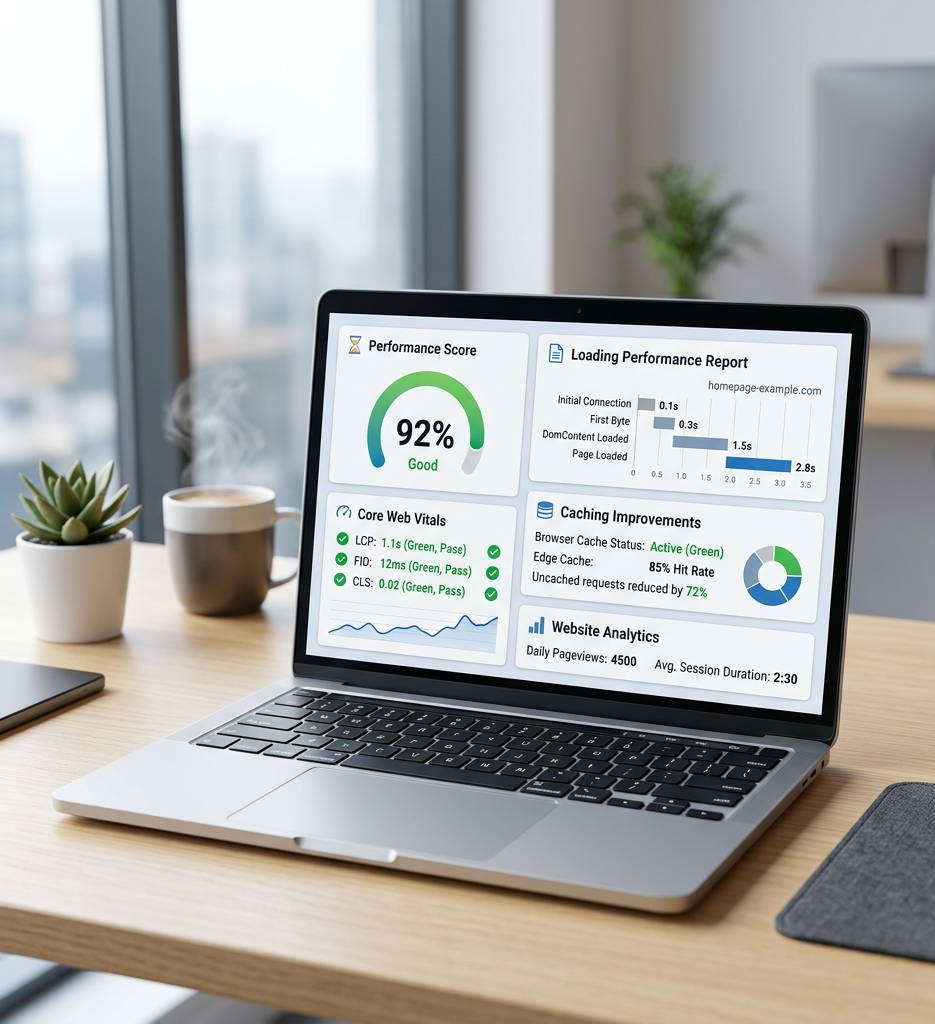


The 5 WooCommerce speed optimizations that make the biggest difference
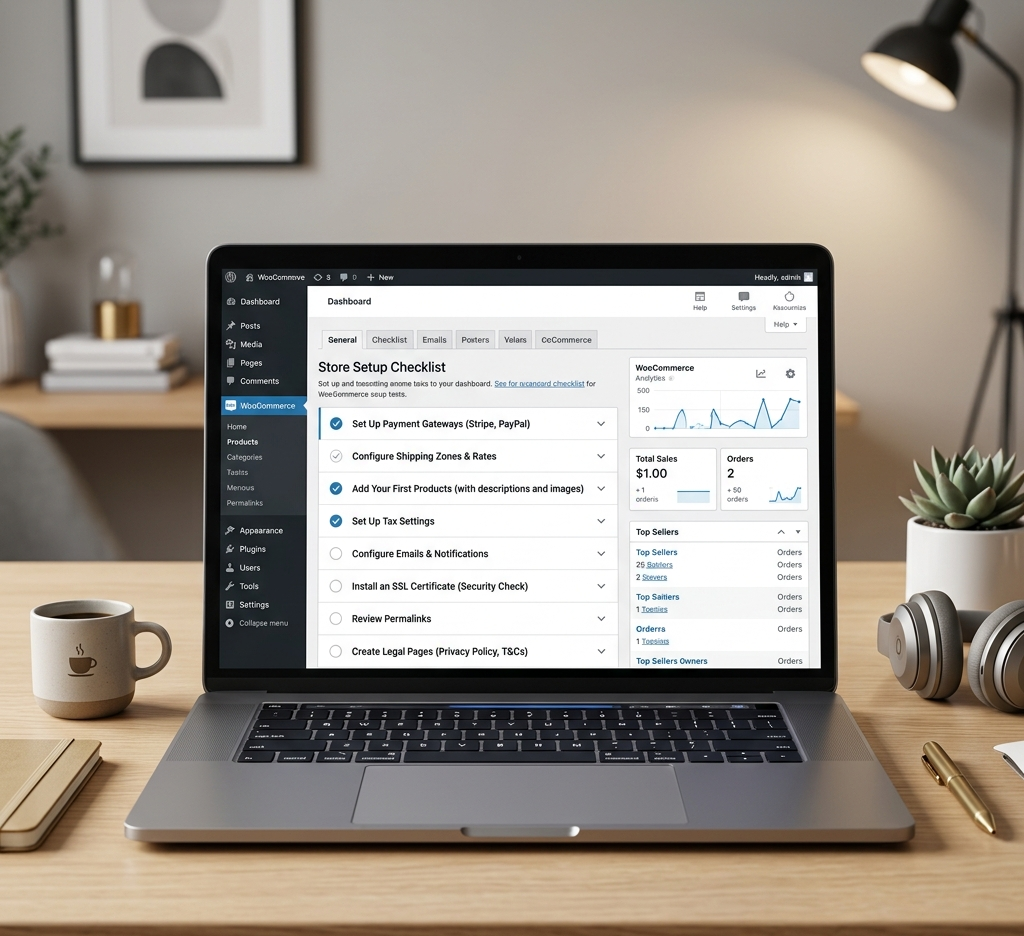
Pre-launch testing checklist: what to check before going live
Every guide below reflects what our team actually does for paying clients. If it’s in here, it works — because we’ve seen it rank sites, not just read about it.
Everything you need to optimize a single WordPress page for Google — from title tags to internal links.
Step 1: Set your target keyword and confirm search intent matches your page
Step 2: Write a title tag under 60 characters with keyword near the front
Step 3: Write a meta description under 155 characters with a clear benefit + keyword
Step 4: Use your H1 only once — make it compelling and keyword-rich
Step 5: Structure content with H2s and H3s that include related keywords naturally
Step 6: Add alt text to every image — describe it clearly with keyword where natural
Step 7: Include 3–5 internal links to related pages on your site
Step 8: Add schema markup (Article, LocalBusiness, FAQPage, or Product)
Step 9: Check PageSpeed score — aim for 85+ on mobile
Step 10: Submit the URL in Google Search Console and request indexing
If you run a local business and you're not showing up in Google Maps or the local 3-pack, this guide is for you.
Step 1: Claim and fully complete your Google Business Profile
Step 2: Choose the right primary and secondary categories for your business
Step 3: Add photos — businesses with 10+ photos get 35% more clicks
Step 4: Get your NAP (Name, Address, Phone) consistent across every directory
Step 5: Build location-specific landing pages for each city/area you serve
Step 6: Add LocalBusiness schema markup to your homepage and contact page
Step 7: Actively request reviews — 50+ Google reviews dramatically improves ranking
Step 8: Respond to every review — Google rewards engagement
Step 9: Build local citations in Yelp, BBB, Bing Places, and industry directories
Step 10: Track your Map Pack ranking with a tool like BrightLocal or SE Ranking
Technical SEO is the foundation everything else builds on. If your site has crawl errors, slow load times, or duplicate content — no amount of keyword optimization will save your rankings.
Step 1: Connect Google Search Console and check for crawl errors and coverage issues
Step 2: Check for broken links (404 errors) and set up 301 redirects
Step 3: Ensure your site is on HTTPS — not HTTP
Step 4: Check that only one version of your site resolves (www vs non-www)
Step 5: Verify your XML sitemap is submitted and all important pages are included
Step 6: Check for duplicate title tags and meta descriptions across all pages
Step 7: Test mobile friendliness using Google’s Mobile-Friendly Test tool
Step 8: Check Core Web Vitals in Search Console — LCP, CLS, and FID scores
Step 9: Verify canonical tags are correctly set on all paginated or duplicate content
Step 10: Check that your robots.txt is not blocking important pages from Google
You don't need a $200/month SEO tool to find great keywords. Here's the exact free process our team uses when starting a new client's SEO strategy.
Step 1: Start with Google Autocomplete — type your main topic and note all suggestions
Step 2: Use Google’s ‘People Also Ask’ and ‘Related Searches’ sections on any SERP
Step 3: Install the free Keywords Everywhere Chrome extension for volume data
Step 4: Use Google Search Console — if your site is live, it shows what you already rank for
Step 5: Analyse competitors using free tools: Ubersuggest, Ahrefs free tier, or Semrush free
Step 6: Group keywords by intent: informational, navigational, transactional, commercial
Step 7: Prioritise keywords by: relevance > intent match > volume > competition
Step 8: Map each keyword to a specific page on your site — one primary keyword per page
Step 9: Create a simple Google Sheet to track keywords, pages, and monthly rankings
A downloadable PDF checklist covering 40+ points for a full WordPress audit.
How to use:
Enter any URL and instantly see your Google PageSpeed score with a fix guide.
How to use:
Enter your page topic and keyword — get an optimized title and meta description instantly.
How to use:
Scan your WordPress site for common vulnerabilities, outdated plugins, and security risks.
How to use:
Struggling with blog headlines? Enter your topic and get 10 SEO-optimized title ideas.
How to use:
Paste any keyword and get an estimated difficulty score plus 5 easier alternatives.
How to use: